
Every WooCommerce site I build gets the same few changes to the My Account area. The menu runs down the side and squeezes the order table. The login form asks for a “Username or email address” when nobody remembers their username. Account details and addresses sit on two separate pages, and the password change is tucked at the bottom of one of them.
I was making these changes with child-theme CSS, snippets in functions.php and copied WooCommerce templates. Each copy is something to carry forward when the theme changes, and template overrides go stale whenever WooCommerce updates them. So I built this “My Account Tweaker” to save having to copy PHP snippets from project-to-project.
What it does
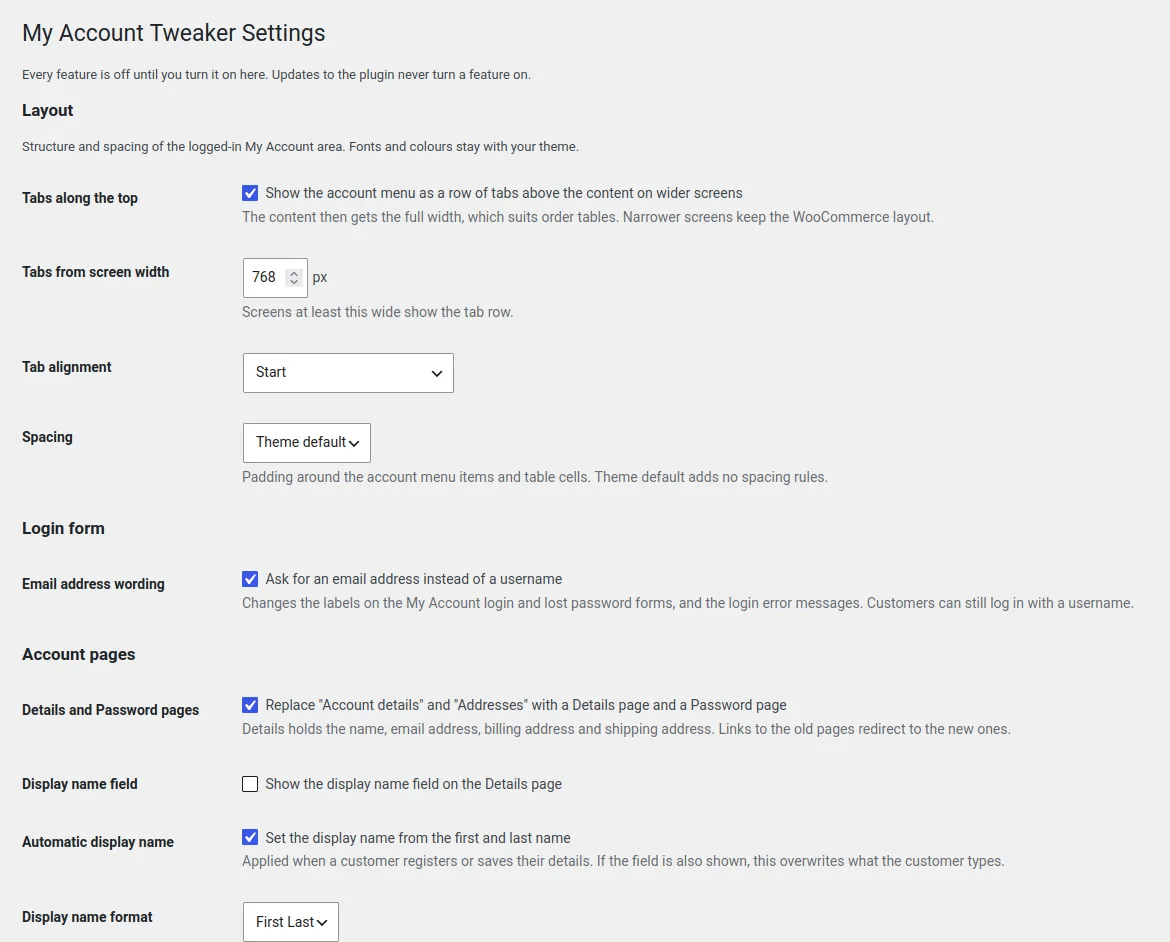
None of these modifications are enabled by default. They’re all opt-in, so enable what works best for your project:
- Tabs along the top on desktop, so order tables get the full width. Phones and narrow screens keep WooCommerce’s normal layout.
- Spacing presets for the menu and table cells: theme default, compact or comfortable. Fonts and colours stay with your theme.
- Email address wording on the login, checkout login and lost password forms. Customers can still log in with their username.
- Details and Password pages. One Details page holds name, email, billing and shipping addresses. Password gets a page of its own.
- Display name options. Hide the display name field, and set the name automatically from the customer’s first and last name.
- Dashboard greeting. Pick a friendlier greeting, and hide the “From your account dashboard you can…” paragraph.
Setting it up
- Upload the zip under Plugins → Add New → Upload Plugin, then activate it.
- Go to WooCommerce → My Account Tweaker.
- Turn on one feature, save, and check your My Account pages as a customer. Then move on to the next.
Updates arrive through the normal WordPress updates screen.
Checking it works
- Tabs: narrow the browser past your breakpoint (768 pixels by default). The menu should switch between a row of tabs and WooCommerce’s side layout.
- Login: log out and try a wrong password. You should see “Unknown email address or incorrect password.” Then log in with your username to check that still works.
- Details: open
/my-account/edit-address/. You should land on the Details page. Change the email address without entering your current password, and you should get an error asking for it. - Password: change your password, then check you’re still logged in and that the confirmation email arrives.
What it doesn’t do
- It doesn’t touch
wp-login.php. Only WooCommerce’s own forms change. - It doesn’t rename, hide or reorder other menu items such as Orders and Downloads.
- It has no font or colour settings, on purpose. Those belong in your child theme or in the Customiser.
- Changing the dashboard greeting or introduction replaces WooCommerce’s dashboard template. If your theme customises that template, check it with the setting enabled.
That’s the set of My Account changes I used to make by hand on every build, now a few ticks on a settings page that survive theme changes and WooCommerce updates. If there’s a tweak you keep making to My Account that isn’t here, let me know in the comments.