

All our hosting includes automated daily full-site backup and update (WordPress core, plugins & themes). Hourly update checks look for urgent security updates too.
Click on the times to change them, and make sure the Auto Backup runs before the Auto Update.
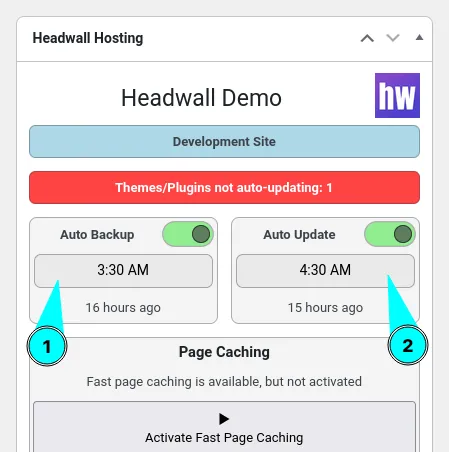
When the auto-update runs, your site will switch to maintenance mode for a few seconds (usually no more than about 5 seconds).
If your website is a UK-based WooCommerce store and you have a significant US-based audience, set your auto update time to nearer 6am to keep things nice and smooth for visitors in California.
Preventing plugin auto-updates
In some cases, you might want to prevent a plugin from automatically updating – such as when you’re chasing down a technical issue with the plugin developer.
To remove a plugin from the auto-update cycle, navigate to Settings > Headwall Hosting
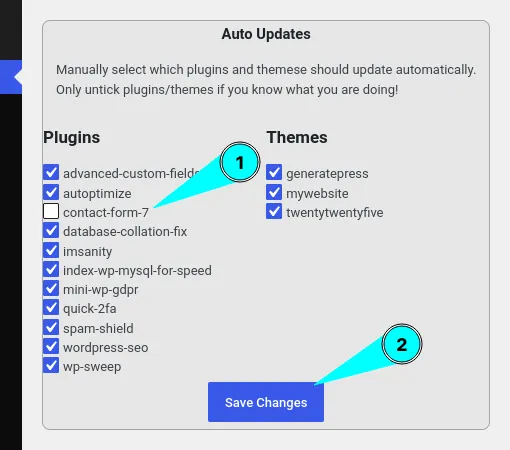
Important: Do not disable plugin auto-updates for longer than it takes to resolve the issue. Running out-of-date plugins is by far the most common cause of WordPress websites becoming hacked.
If you’re concerned that you might need to stop auto-updates for more than a day-or-so, reach out to us and we’ll see if we can help resolve the issue with your plugin(s).
Emergency security updates
In some instances, we’ll detect when a important security update is available. This might be for a plugin like WooCommerce, or for WordPress itself. In this case, our systems will update your website immediately. We do this to mitigate against the quick turnaround between security updates being released, and hackers exploiting a known vulnerability.
The only exception is if you’ve manually disabled auto-updates for that plugin. In this case, our systems will be alerted that your site is running a plugin with a known vulnerability. We’ll reach out to help you get the issue resolved quickly