
A client’s site was getting whacked by API calls that were slowing things down. The API calls were actually legitimate, but the caller didn’t have a way to slow down the call rate. I originally wrote a tutorial to rate-limit incoming API calls and it worked well, but it’s a bit difficult to use if you’re not familiar with editing PHP code.
This plugin takes that logic and puts it into a lightweight, install-and-forget tool. It uses WordPress transients to throttle REST API requests, returning an HTTP 429 (Too Many Requests) response when a client gets a bit too enthusiastic.
What it does
The plugin adds a simple settings page that lets you control how frequently clients can hit your REST API endpoints. It’s particularly useful for protecting WooCommerce stores from scrapers or preventing botnets from hammering your search endpoints.
Features:
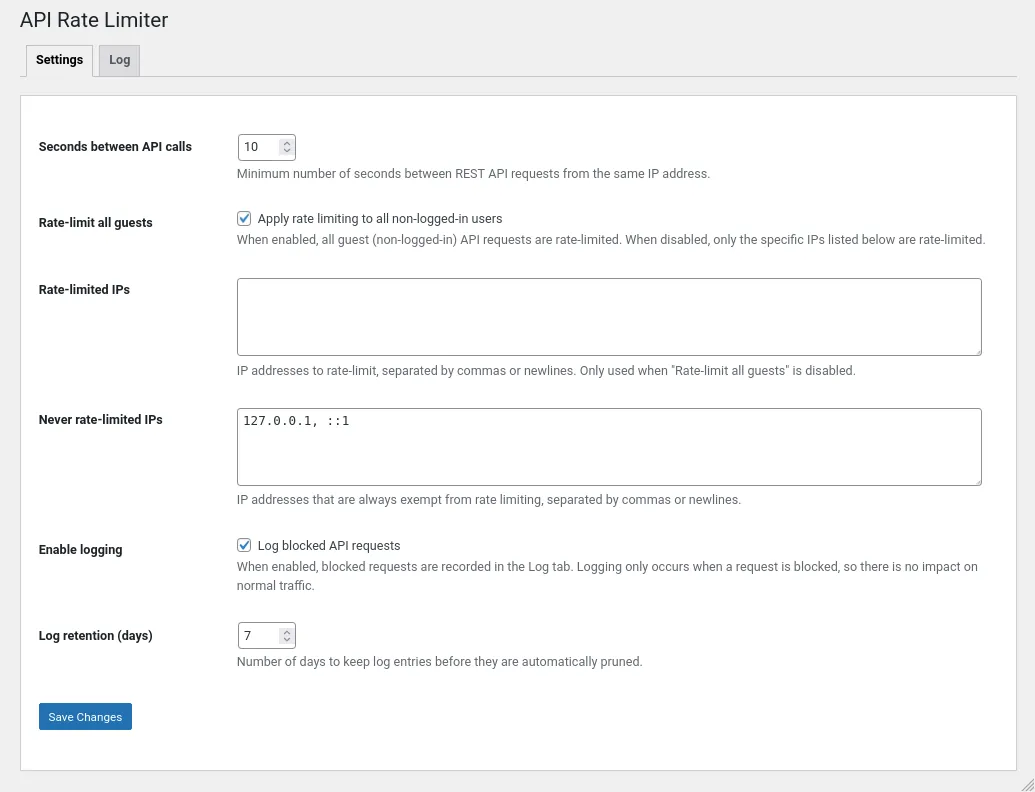
- Configurable rate limits: Set the minimum number of seconds allowed between API calls from the same IP.
- Guest throttling: Option to rate-limit all non-logged-in users automatically.
- IP Allowlist: Exempt specific IP addresses (like your own office or a trusted partner) from being throttled.
- Blocked request logging: Keep track of who is being throttled with a dedicated log tab.
- Automatic log pruning: Logs are automatically cleaned up via a daily cron job to keep your database tidy.
- WooCommerce ready: Standard REST API and Store API routes are protected out of the box.
How it works
The plugin hooks into the rest_pre_dispatch filter. This allows it to check the client’s IP address and request frequency before WordPress spends any significant resources processing the actual API request.
It uses the WordPress transients API to store a timestamp for each rate-limited IP address. When a request comes in, the plugin calculates the time since the last recorded request. If it’s less than your configured interval, it kills the request immediately and returns a 429 status code.
Because it uses transients, the performance impact is negligible, and it works across most server environments without needing custom server-level rate-limiting rules.
Choosing the right interval
The “right” interval depends on what your site is doing. I usually start with 10 seconds for standard sites.
- Standard WordPress sites: 10-30 seconds is usually plenty to stop scrapers without affecting real users.
- WooCommerce stores: 5-10 seconds is a good balance for protecting checkout and search endpoints.
- Headless frontends: If your site is decoupled, you might want to drop this to 1-3 seconds or allowlist your frontend’s IP.
Customising the logic
If you need to apply different limits to specific IPs or exempt certain requests programmatically, there are a couple of handy filters.
To adjust the interval for a specific partner IP:
add_filter( 'wptarl_seconds_between_api_calls', function ( int $seconds, string $client_ip ): int {
    // Allow a known partner IP to make faster requests.
    if ( '198.51.100.10' === $client_ip ) {
        $seconds = 2;
    }
    return $seconds;
}, 10, 2 );
To exempt requests that have a valid custom API key:
add_filter( 'wptarl_is_client_rate_limited', function ( bool $is_limited ): bool {
    if ( ! empty( $_SERVER['HTTP_X_API_KEY'] ) && $_SERVER['HTTP_X_API_KEY'] === 'my-secret-key' ) {
        $is_limited = false;
    }
    return $is_limited;
} );
Security and privacy
The plugin stores the IP addresses of blocked requests in a custom database table to provide the logging functionality. To keep this privacy-friendly and performance-optimised:
- Blocked only: We only log requests that are actually throttled.
- Retention: You can choose how many days to keep these logs (default is 7 days).
- Hard cap: The log table is automatically pruned to a maximum of 5,000 rows to prevent it from growing out of control.
Technical notes
The plugin follows the Headwall philosophy of being as lightweight as possible:
- No frontend impact: Legitimate requests that aren’t throttled experience zero performance degradation.
- Standard compliance: Uses proper HTTP 429 status codes and follows WordPress coding standards.
- Clean uninstall: When you delete the plugin, it cleans up all its options and drops the log table automatically.