

Elementor has been getting slower. The editor takes longer to load, the admin area feels heavier, and pages built with it have more HTTP requests than you’d expect from a page builder. Some of this is a natural result of feature creep. But some is caused by configuration defaults we can change.
The good news is that several quick wins are hiding in Elementor’s settings panel and your site’s PHP configuration. None of what follows requires you to edit Elementor’s core files or apply any patches — these are all supported settings and standard WordPress techniques. If you want to go further, we’ll get into the code in a follow-up post.
Too many post revisions
Elementor saves a revision every time you hit Save. WordPress also saves its own revisions on top of that. On a site that’s been running for a year or two, a single page can accumulate dozens (or hundreds) of redundant revisions. Each one takes up database space, and when Elementor loads the editor it has to work through all that history.
By default, WordPress doesn’t limit revisions, but if we add the following to your child theme’s functions.php or a code snippets plugin:
/**
 * Limit post revisions to keep the database clean.
 * If you want more of a post revision undo history,
 * increase $number from 3 to 5.
 */
function custom_post_revisions( $number, $post ) {
	if ( class_exists( '\Elementor\Plugin' ) ) {
		$number = 3;
	}

	return $number;
}
add_filter( 'wp_revisions_to_keep', 'custom_post_revisions', 10, 2 );
Three revisions is plenty for most content workflows. If you need more breathing room, five is a reasonable ceiling.
Next time you make a change to a post or a page and save it, WordPress will zap old revisions. This can prevent Elementor using up loads of memory and taking ages to load.
CSS Print Method: switch to External File
Elementor has two ways of serving the CSS it generates for your pages: it can embed it inline in the HTML (<style> tags in the <head>), or it can write it to a file and serve it as a normal stylesheet.
The default is Internal Embedding, which means every page load regenerates and outputs CSS directly in the HTML. This adds weight to your HTML (to the DOM), prevents the browser from caching the styles, and adds server-side work on every request.
Switch it to External File: go to Elementor > Settings > Performance and change CSS Print Method to External File. Click Save and then go to Elementor > Tools > Regenerate Files & Data to force Elementor to write the CSS files out immediately.
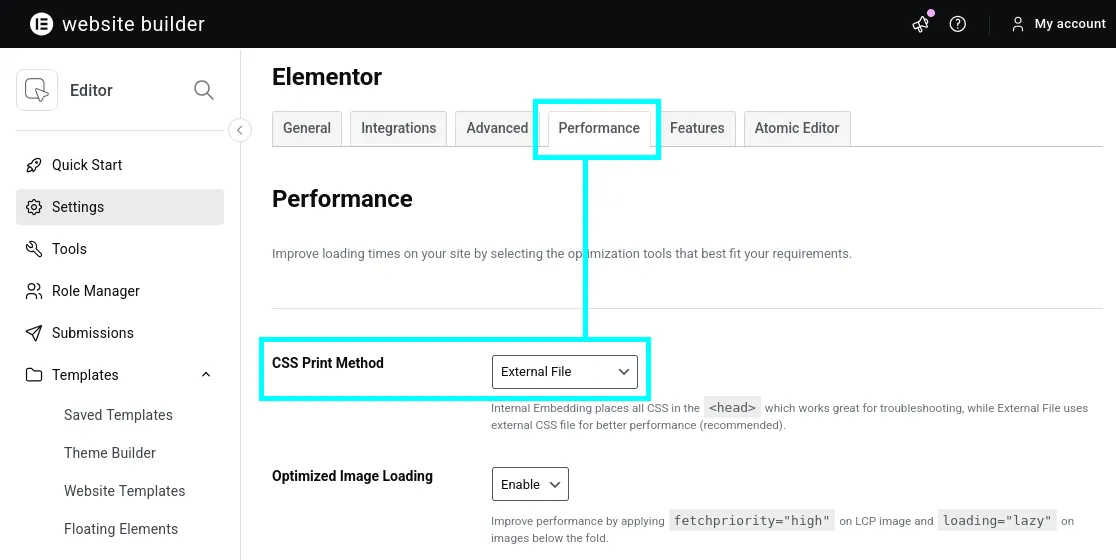
From that point on, Elementor’s generated CSS is cached by the browser like any other stylesheet. It’s a straightforward win with no downsides on a properly configured server.
Google Fonts
Elementor loads Google Fonts by default for any typography choices that use them. Each font family triggers an external HTTP request to fonts.googleapis.com, which adds a render-blocking round trip to your page load. If you’re in Europe, there are also GDPR considerations — Google Fonts makes a request to Google’s servers, which logs the visitor’s IP address.
If your design uses system fonts or self-hosted fonts, there’s no reason to let Elementor make any Google Fonts requests at all. Disable it at Elementor > Settings > Advanced > Load Google Fonts Locally. Just set it to Disable.
If you do need specific Google Fonts, download them and serve them locally. The OMGF plugin handles this well alongside Elementor. Once your fonts are self-hosted, you can safely switch off Elementor’s Google Fonts loading.
You can also force this via PHP if you prefer to manage it in code rather than the UI:
/**
 * Disable Elementor's Google Fonts requests.
 * Use this if you're serving fonts locally or using system fonts only.
 */
add_filter( 'elementor/frontend/print_google_fonts', '__return_false' );
Disable Font Awesome
Elementor ships with Font Awesome and loads it on the frontend whenever you use any icon widget. There are two loading modes: web font (a “.woff2” file and CSS stylesheet) and SVG (inline SVG, no external file).
If you use icons heavily, SVG is usually better for performance. Switch this at Elementor > Settings > Advanced > Font Awesome Support.
If you don’t use any Elementor icon widgets, you can disable Font Awesome loading completely with a snippet:
/**
 * Disable Font Awesome loading from Elementor.
 * Use this if you have no icon widgets active on your site.
 */
add_action( 'wp_enqueue_scripts', function() {
    wp_dequeue_style( 'font-awesome' );
    wp_dequeue_style( 'font-awesome-4-shim' );
    wp_dequeue_style( 'font-awesome-5-all' );
    wp_dequeue_style( 'elementor-icons' );
}, 100 );
Check your site visually after applying this — if any icons disappear, Font Awesome is still in use somewhere and you’ll need to leave it enabled.
Autosave interval
Elementor autosaves your work as you edit, and the default interval is fairly aggressive. That’s OK if you’re editing over a slow connection and want peace of mind. But if you’re on a fast network or your server is under load, reducing the autosave frequency makes the editor feel more responsive.
Add this to reduce autosaves to once every three minutes. It won’t affect what’s already been saved – it just spaces out the automatic saves.
/**
 * Increase Elementor's editor autosave interval.
 * Default is 60 seconds. This reduces unnecessary server requests
 * during editing sessions.
 */
function custom_elementor_autosave_interval( $settings ) {
	if ( is_array( $settings ) ) {
		$settings['interval'] = MINUTE_IN_SECONDS * 3;
	}

	return $settings;
}
add_filter( 'elementor/editor/heartbeat_options', 'custom_elementor_autosave_interval', 10, 1 );
WordPress Heartbeat during editing
The WordPress Heartbeat API runs continuously in the admin area. In the Elementor editor, this means periodic background requests to admin-ajax.php while you’re building pages. On busy servers with multiple editors active, these requests compete with frontend traffic for PHP worker threads. That means your site will also slow down for your customers.
Throttle the heartbeat in the admin area with this snippet:
/**
 * Reduce WordPress Heartbeat frequency in the admin area.
 * Cuts down on admin-ajax.php requests during Elementor editing sessions.
 */
function custom_heartbeat_settings( $settings ) {
	if ( is_array( $settings ) ) {
		$settings['interval'] = MINUTE_IN_SECONDS * 5;
	}

	return $settings;
}
add_filter( 'heartbeat_settings', 'custom_heartbeat_settings', PHP_INT_MAX, 1 );
Putting it all together
None of these changes require editing plugin files or applying patches. They’re all supported configuration options and standard WordPress filters:
- Revision limit: keeps the database clean and prevents editor slowdown and memory exhaustion
- CSS Print Method: External File: enables browser caching of Elementor’s generated CSS
- Google Fonts disabled: removes render-blocking external font requests
- Font Awesome: SVG: eliminates a web font file request on every page
- Autosave interval: reduces editor-to-server chatter during build sessions
- Heartbeat throttle: cuts down on background
admin-ajax.phprequests
Each of these is low-risk and reversible. The CSS Print Method change and the revision cleanup tend to have the most noticeable impact on sites that have been running Elementor for a while.